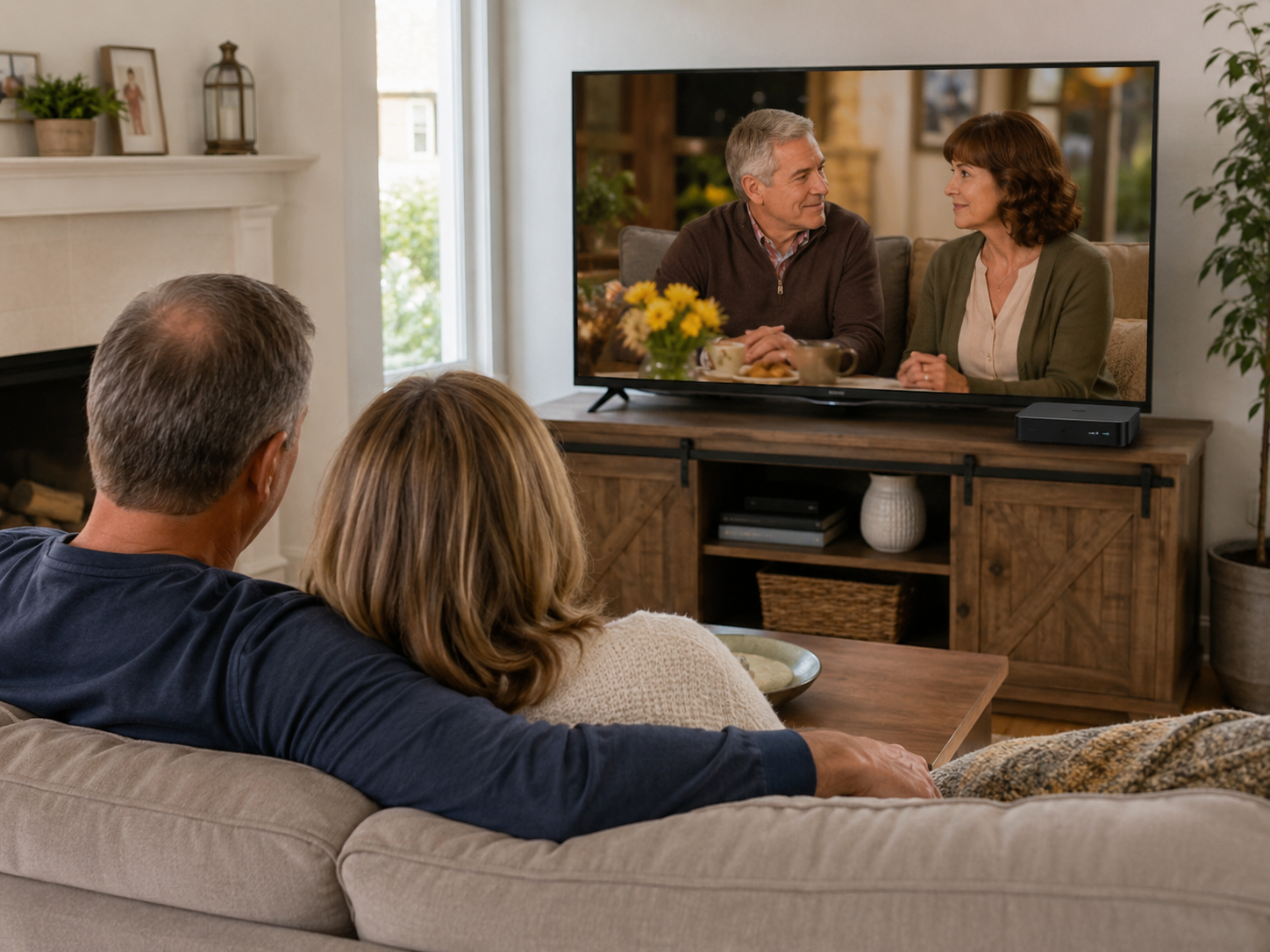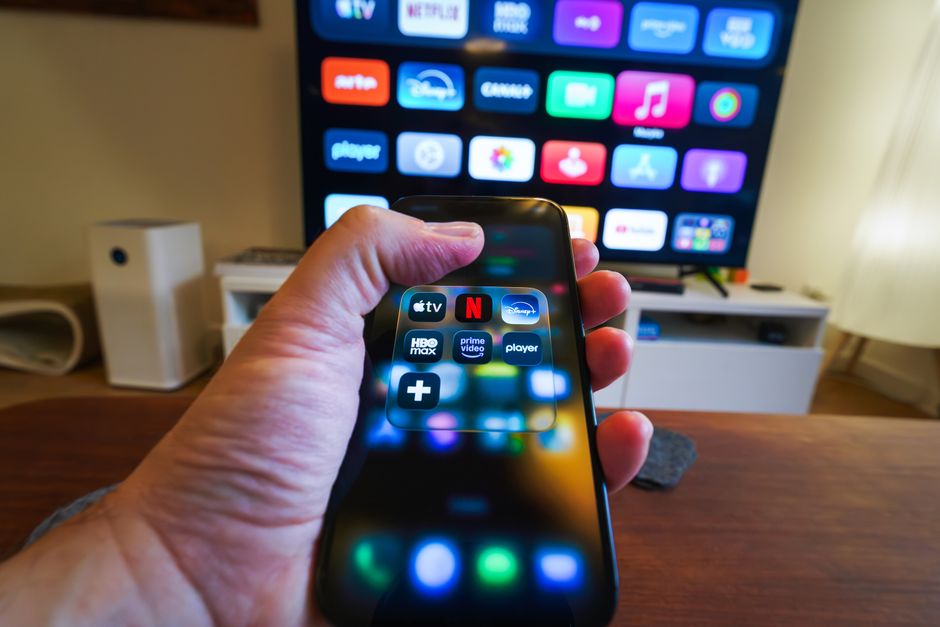
Before connecting a vSeeBox, a few quick checks can make the first setup smoother.
What you need
- A TV with an available HDMI input
- The HDMI cable and power adapter included with the device
- Two AAA batteries for the remote; batteries are not included
- Your home Wi-Fi name and password, or an Ethernet connection where appropriate
Check the HDMI input
Look at the HDMI label on the TV before connecting the box. After connecting, use the TV remote's Input or Source button to select that same HDMI number.
Check your internet
Confirm that another device can connect to your home network. Streaming performance depends on your network, the app being used, and the content provider.
Understand third-party apps
Compatible apps have their own availability, account requirements, terms, content, and pricing. Purchasing the hardware does not include or guarantee every third-party service.
If you need help
Email support@vseeboxeast.com with your order number, model name, and a description of the screen or error you see.
Prepare the setup area
Place the box on a stable, ventilated surface close enough for the HDMI and power cables to reach without tension. Make sure the front of the device is not blocked and keep the TV remote nearby because you will need it to select the correct HDMI input.
Keep these details within reach
- The HDMI port number used on the television
- The home Wi-Fi network name and password
- Two fresh AAA batteries for the remote
- Your order number and model name in case support is needed
After the first screen appears, complete one step at a time. If something does not work, note the exact screen or message before restarting equipment. That detail makes troubleshooting much faster.
Related help
It also helps to clear a small space near the television before opening the package so cables, the remote, and printed instructions stay together during setup.