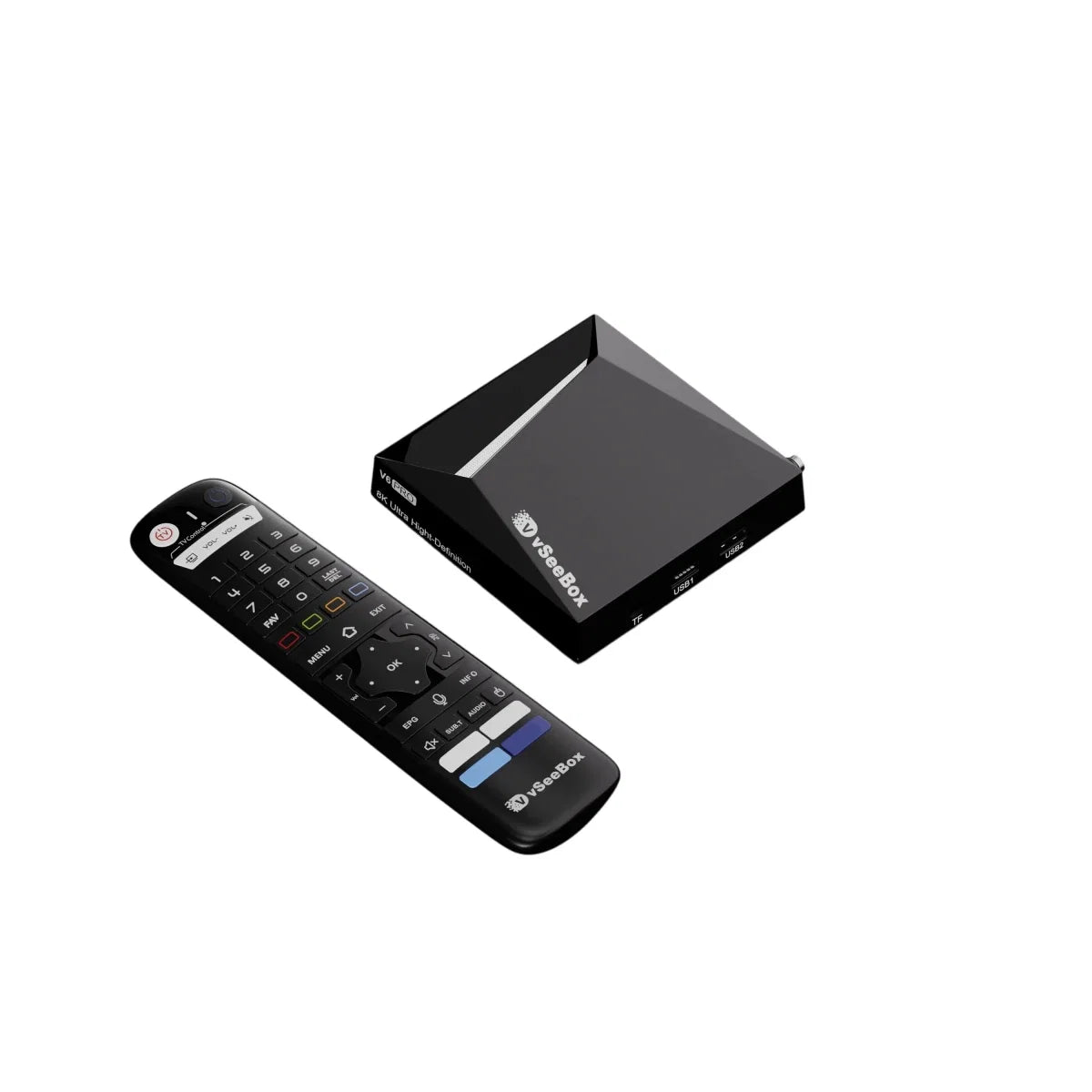
This guide covers the basic first-time setup for a vSeeBox. Your TV needs an available HDMI input, and you will also need home internet for online apps and services.
Step 1 — Connect HDMI and power
Connect the included HDMI cable from the vSeeBox to an available HDMI input on your TV. Connect the power adapter and note which HDMI input you used, such as HDMI 1 or HDMI 2.
Step 2 — Select the matching TV input
Use your television remote's Input or Source button to select the HDMI input from Step 1. The vSeeBox screen should appear.
Step 3 — Connect to your home network
Follow the on-screen instructions to select your Wi-Fi network and enter the password. If you use Ethernet, connect a network cable where supported by your setup.
Common first-step checks
- No picture: confirm the HDMI cable is fully connected and the TV is set to the correct input.
- Remote not responding: confirm two AAA batteries are installed correctly. Batteries are not included.
- Wi-Fi problem: verify the password and confirm another device can connect to the same network.
- Playback pauses: internet performance, Wi-Fi signal, the app, and the content provider can all affect playback.
Apps and services
Compatible third-party apps can be installed and used on the device. Their availability, account requirements, content, features, and fees are controlled by the respective provider.
Need help?
Email support@vseeboxeast.com with your order number, your vSeeBox model, and a description of what appears on the screen. Email gives us the clearest way to review the issue and send step-by-step instructions.
After the first startup
Allow the device to finish any on-screen setup before opening several apps. Confirm the date, time, network connection, and remote response. If an app requires an account, use the provider's official sign-in process and review its current terms and fees.
If you get stuck
Write down the HDMI port number and the exact message on the TV. Test one change at a time so you can identify which step solved the problem. Never send a Wi-Fi password or payment information by email.